
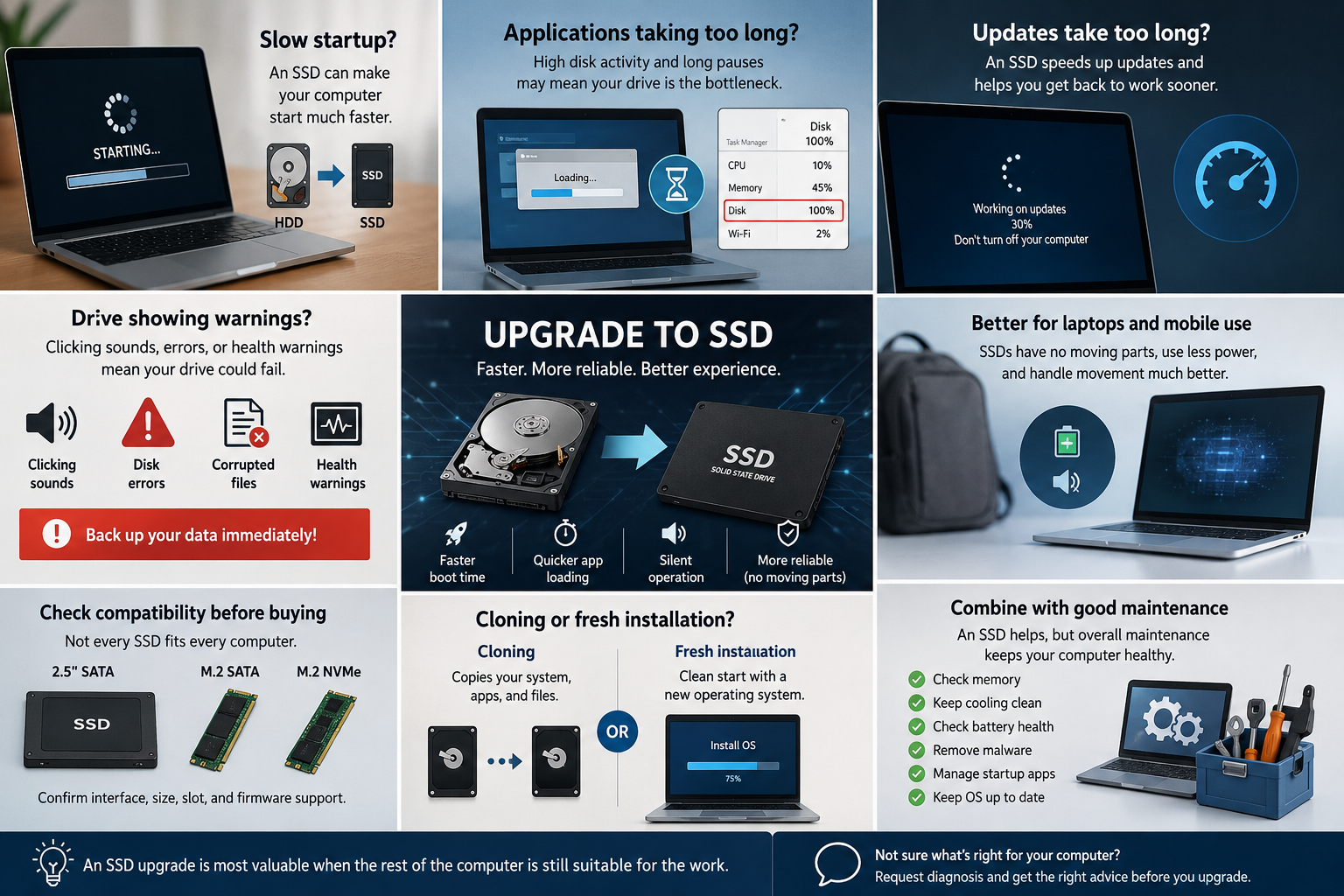
A slow computer does not always need replacement. If the processor, screen, keyboard, and general condition are still suitable, replacing an old mechanical hard drive with an SSD can give the machine a much more responsive feel.
The computer takes too long to start
A mechanical drive must physically locate data. As it ages or fills up, startup may become painfully slow. An SSD accesses data electronically and can reduce boot and application-loading times substantially.
Simple applications hesitate
If opening a browser, document, or file explorer causes long pauses while the storage activity remains high, the drive may be the bottleneck.
This should still be diagnosed properly. Limited memory, unwanted software, overheating, and system corruption can create similar symptoms.
Updates take an unusually long time
Operating-system updates involve reading and writing many files. Older drives can make this process slow and disruptive. Faster storage helps the system complete installation and restart work more efficiently.
The drive shows health warnings
Clicking sounds, repeated disk errors, corrupted files, or health-monitoring warnings require immediate attention.
Do not begin with an upgrade. Begin with a backup. A failing drive may stop working during cloning or installation, so important data should be protected first.
You need more reliable mobile use
SSDs have no moving parts, making them better suited to laptops that are transported frequently. They also tend to use less power and operate silently.
Confirm compatibility before buying
Not every SSD fits every computer. Common types include 2.5-inch SATA and several forms of M.2 storage. The interface, physical size, firmware, and available slot must be confirmed.
Decide between cloning and a fresh installation
- Cloning copies the existing system, applications, and files to the new drive.
- Fresh installation starts with a clean operating system and requires applications and files to be restored.
Cloning is convenient when the existing system is healthy. A fresh installation may be better when the computer has persistent software problems.
Combine the upgrade with sensible maintenance
An SSD cannot solve every problem. Check memory capacity, cooling, battery condition, malware, startup applications, and the age of the operating system.
An SSD upgrade is most valuable when the rest of the computer is still suitable for the work.
Request diagnosis when you are unsure about compatibility, drive health, data migration, or whether the cost makes sense compared with replacement.
Too much uncleared cache makes the computer slow as well.